Wednesday, May 14, 2008

Edit Google Spreadsheet With Everyone


Sent to you by Jeff via Google Reader:


via Google Blogoscoped by Philipp Lenssen on 5/14/08
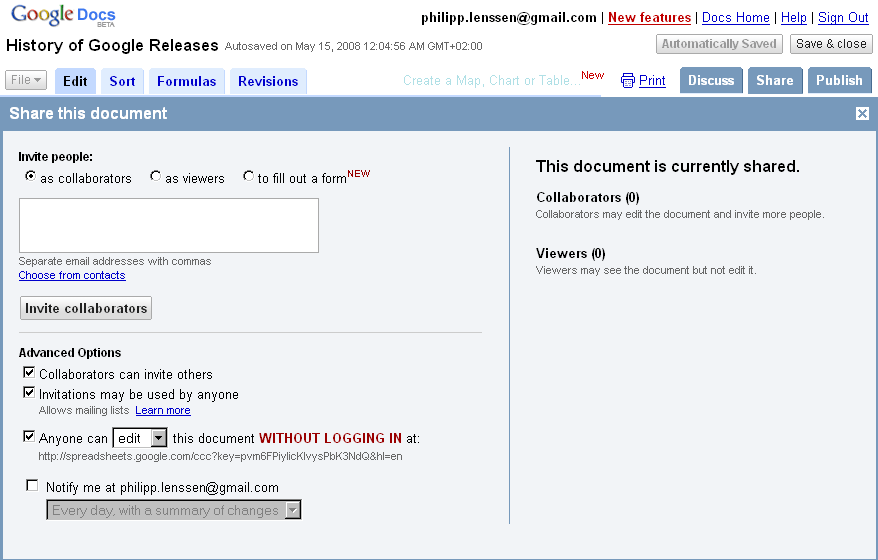
Ionut Alex. Chitu reports you can now edit a spreadsheet with anyone who knows the URL, as an option, and not just people with a Google account which you invite. To set this up, start at Google Docs and click New Spreadsheet. Prepare your data and hit the Share tab; now configure the "Anyone can [edit] this without logging in" box, and share the URL Google provides you with. Ionut says, "your spreadsheet becomes a wiki."

For sample purposes, you can now edit along the History of Google Releases spreadsheet.

[By Philipp Lenssen | Origin: Edit Google Spreadsheet With Everyone | Comments]


[Advertisement] Want to advertise here? Your ad will show in the blog and feed.


Things you can do from here:


Google Docs adds mobile access support


Sent to you by Jeff via Google Reader:


via The official update feed from the Google Apps team by Google Apps Team on 3/11/08


Users can now sign in and view documents and spreadsheets from their mobile devices, including the iPhone.

Editions impacted:
Standard, Premier, Education and Partner Editions

Languages impacted:
US English

How to access what's new:
From your mobile phone's browser, sign in to Google Docs at docs.google.com/a/your.domain/m.

For more information:
http://docs.google.com/support/spreadsheets/bin/answer.py?answer=77428


Things you can do from here:


Google Spreadsheets adds gadgets, revision notifications and more


Sent to you by Jeff via Google Reader:


via The official update feed from the Google Apps team by Google Apps Team on 3/19/08


Spreadsheet gadgets let you visualize your data in interesting, intuitive ways. For example, you can see addresses on an interactive map, or create dynamic time series charts that let you zoom in and scroll through a graph.

Revision notifications let you set up alerts so you know when someone makes changes to a spreadsheet.

Other new features include the ability to select cells for formulas with arrow keys, an expanded color palette, text auto-complete from other cells in the same column, a new function auto-complete feature, and new sort(), filter() and unique() functions.

Editions impacted:
Standard, Premier, Education, Team and Partner Editions

Languages impacted:
US English

How to access what's new:
Sign in to Google Docs, open a spreadsheet, and click the 'Add' button in the toolbar. (The icon looks like a bar chart.) Then select "Gadget..." to see all the gadget options.

See links below for other feature access instructions.

For more information:
http://documents.google.com/support/spreadsheets/bin/topic.py?topic=14187
http://documents.google.com/support/spreadsheets/bin/answer.py?answer=91588
http://documents.google.com/support/spreadsheets/bin/answer.py?answer=92022


Things you can do from here:


Google Presentations adds speaker notes and YouTube video embedding

Sweet.....


Sent to you by Jeff via Google Reader:


via The official update feed from the Google Apps team by Google Apps Team on 4/28/08


You can now add speaker notes and embed YouTube videos in Google Presentations.

Editions impacted:
Standard, Premier, Education, Team and Partner Editions

Languages impacted:
US English

How to access what's new:
Sign in to Google Docs, open a presentation and click the speaker notes icon at the bottom right of the screen to add speaker notes. Click 'Start presentation' and then click 'View speaker notes' to see your notes.

To embed a video in a presentation, open a presentation for editing, click 'Insert video' and search for the video you want to embed.

For more information:
http://www.google.com/a/help/intl/en/users/dands.html


Things you can do from here:


Google Docs allows CSS customization for documents

Getting better and better ways to make it look polished.


Sent to you by Jeff via Google Reader:


via The official update feed from the Google Apps team by Google Apps Team on 5/9/08


Users can now customize the cascading style sheet (CSS) for their documents. This provides advanced controls for page design, layout and formatting.

Editions impacted:
Standard, Premier, Education, Team and Partner Editions

Languages impacted:
US English

How to access what's new:
Sign in to Google Docs and open a document. Then click 'Edit' from the menu bar and then 'Edit CSS...' to open the CSS editing window.

For more information:
http://documents.google.com/support/bin/answer.py?hl=en&answer=94168


Things you can do from here:


Sunday, May 11, 2008

Site now with Google Reader, RSS Feed....

In the upper left hand corner, you'll note that this site is now participating in RSS feed.  Go to "More" (Google Apps) when logged in and set up your Google Reader (RSS Aggregator) to get web information collected for you.  If anyone is interested in how to make your/student/class an RSS feed site, so Google Reader can be used, let me know.  I see it as powerful for teachers letting their students update their "Site" and all the information comes to the teacher in one nice Reader application.....;-)

It's kind of dweeby to set up the first time, but once you get it, powerful tool......

Use Google "Sites" as Wikis

You can use Google Sites as Wikis.  Check out a pbwiki site, I just ported over for Tom Warner.


Drill down into Science and Animal Reports to see student work - wow - 4th graders!!!!

Just add your students in Contacts as a Group (good thing to have for getting going with this stuff), after you create a site, then add the student Group as "Collaborators" when you share.  Students get an invite to the Site through their email, they click on the invite.  The next time they log in, they will be able to edit, as a Collaborator.

Because the integration of Sites with all the other Google Apps is so easy, the porting was easy.  Tom was having some trouble with the integration in pbwiki of other Google documents, like Presentations.  You can integrate, docs, sheets, etc. in Sites.  Plus, accounts are already created.


Wednesday, May 7, 2008

Access all Google Docs features from Safari

If you enable the Develop menu in Safari, as covered in this hint, you can fix the problems Safari has with Google Docs. After enabling the menu, just select Develop » User Agent , and select one of the Firefox entries (2.0.x Mac, for instance), you will find that all features are enabled.

What are your thoughts about making this modification to the Big CATS Project new laptops for teachers?

This post from macosxhints.com

Tuesday, May 6, 2008

Using Google Docs in the classroom: Simple as ABC

Click on the link http://docs.google.com/View?docid=dcdn7mjg_72nh25vq to view a great resource from Google where you will find ideas for using Google Docs in the classroom. There are also steps for getting started . . . although you can skip the section about creating Google accounts since teachers already have pvlearners accounts that should be used for Google Docs.  Information is included on how to create, share, edit and organize Google Docs.

Wednesday, April 2, 2008

Surveys and Assessments in Shared Sheets

Compliments of GenYes blog, Google has added a new feature to "shared sheets". You can now conduct and compile results from an online survey, online assessment, etc.. Can anyone say automatically-graded formative assessments, or students collecting project data, or in the spirit of GenYes, have the students create, compile, collaborate, on survey/feedback/assessment generation.....;-)

All students and teachers (K-12) will have pvlearners accounts at the start of next school year - current accounts are at 18,000.

GenYes survey announcement:

http://blog.genyes.com/index.php/2008/02/12/google-strikes-again-surveys-collect-data-into-shareable-spreadsheets/

Draper on survey features:

http://drapestakes.blogspot.com/2008/02/surveys-via-google-spreadsheets.html

Detailed survey instructions, including sheet formulas to compile the results, are provided at;

http://howto.xphi.org/survey/

I've also posted this on the pvlearners blog at;

http://pvelearners.blogspot.com

Jeff.....