Sunday, May 18, 2008


Best Practices
1. Use of pvlearners is for communication and collaboration among students and teachers in PVUSD for school activities and educational goals.
2. Students are expected to be self-motivated and responsible with their pvlearners accounts. This includes following the expectations outlined for student behavior per the PVUSD student handbook.
3. Users of pvlearners need to be aware of the following:
4. Activities conducted with pvlearners accounts should be legal, educational, nondisruptive, and adhere to the PVUSD acceptable use policy for Electronic Information Services.
5. Students' Start Pages are to be created and maintained appropriately per the teacher's guidelines.
6. Parental permission/notification is required before pvlearners accounts can be used by students.
7. pvlearners accounts have been established through Google Services and are subject to the terms and conditions of Google.
2. Students are expected to be self-motivated and responsible with their pvlearners accounts. This includes following the expectations outlined for student behavior per the PVUSD student handbook.
3. Users of pvlearners need to be aware of the following:
- Keep your personal information private (including photos, profiles, emails, blogs, wikis, web pages, etc.)
- Keep personal information of others private
- Treat others with respect
- Be aware that published content is viewable by all users of the Internet
4. Activities conducted with pvlearners accounts should be legal, educational, nondisruptive, and adhere to the PVUSD acceptable use policy for Electronic Information Services.
5. Students' Start Pages are to be created and maintained appropriately per the teacher's guidelines.
6. Parental permission/notification is required before pvlearners accounts can be used by students.
7. pvlearners accounts have been established through Google Services and are subject to the terms and conditions of Google.
What is pvlearners?
"pvlearners.net" is an internet domain registered under PVUSD that enables all employees and students to have Google accounts for email, calendars, shared docs/spreadsheets/presentations, blogs, wikis, groups, RSS feeds, and web pages. Please note that these accounts are full, internet, resources and tool enabled. Consequently, understanding and practicing appropriate online use is important for all users, and this practice can not be underscored enough. Concepts such as identity theft, scams, spam, cyberpals, ethics, not disclosing personal information, digital stranger danger, advertising, etc., should be taught, discussed and understood by all users. The Technology Department stands ready to help you present information on these or any topic, should you so desire.
"pvlearners" was created for three reasons:
We currently have the capability for 40,000 accounts that are maintained by our district. At this time we have over 19,000 accounts activated for general communication, many entire schools activated, and many teachers (k-12) actively exploring 21st-century, online collaboration and learning (beyond email) with their students.
You can view the start page for "pvlearners" at http://mail.pvlearners.net.
Additional information is available at the "pvlearners" blog, http://pvlearners.blogspot.com. Training movies are being developed in pTUNES (http://ptunes.pvschools.net), under the Information Technology link, and our subscription to Atomic Learning (http://www.atomiclearning.com) provides online tutorials on use of Google documents, spreadsheets, and presentations.
For information on voluntarily getting your school, teachers and students participating in rich, online communication and collaboration, please contact Jill Felty (jfelty@pvschools.net). Principal approval is required and we are now only acception entire schools, or a one time activation of entire grade levels - sorry, no more one, tow or three teachers. Parental notification/permission is required per Board policy. Please note that not all teachers at a school have to participate with the tools, but at least they can get student homework/communication sent from a known/trusted email address (pvlearners.net), instead of "whatever@yahoo.com", "cooldude@msn.com", etc. Teachers can also have the option to set up their pvlearners account to automatically forward email to their ConnectMe account, simplifying email management. Additionally, student usernames/passwords are set with PVUSD's external model, which teachers have access to through "My Roster" in pDAT (http://pdat.pvschools.net).
Please note that there is a reasonable probability that next year, pvlearners accounts will be available to all students. It's 2008, and moving from analog to digital is upon us all, throughout the world.
"pvlearners" was created for three reasons:
- to prepare students for their future,
- to meet state and national technology standards,
- and to keep our practice current.
We currently have the capability for 40,000 accounts that are maintained by our district. At this time we have over 19,000 accounts activated for general communication, many entire schools activated, and many teachers (k-12) actively exploring 21st-century, online collaboration and learning (beyond email) with their students.
You can view the start page for "pvlearners" at http://mail.pvlearners.net.
Additional information is available at the "pvlearners" blog, http://pvlearners.blogspot.com. Training movies are being developed in pTUNES (http://ptunes.pvschools.net), under the Information Technology link, and our subscription to Atomic Learning (http://www.atomiclearning.com) provides online tutorials on use of Google documents, spreadsheets, and presentations.
For information on voluntarily getting your school, teachers and students participating in rich, online communication and collaboration, please contact Jill Felty (jfelty@pvschools.net). Principal approval is required and we are now only acception entire schools, or a one time activation of entire grade levels - sorry, no more one, tow or three teachers. Parental notification/permission is required per Board policy. Please note that not all teachers at a school have to participate with the tools, but at least they can get student homework/communication sent from a known/trusted email address (pvlearners.net), instead of "whatever@yahoo.com", "cooldude@msn.com", etc. Teachers can also have the option to set up their pvlearners account to automatically forward email to their ConnectMe account, simplifying email management. Additionally, student usernames/passwords are set with PVUSD's external model, which teachers have access to through "My Roster" in pDAT (http://pdat.pvschools.net).
Please note that there is a reasonable probability that next year, pvlearners accounts will be available to all students. It's 2008, and moving from analog to digital is upon us all, throughout the world.
Wednesday, May 14, 2008
Edit Google Spreadsheet With Everyone
Sent to you by Jeff via Google Reader:
via Google Blogoscoped by Philipp Lenssen on 5/14/08
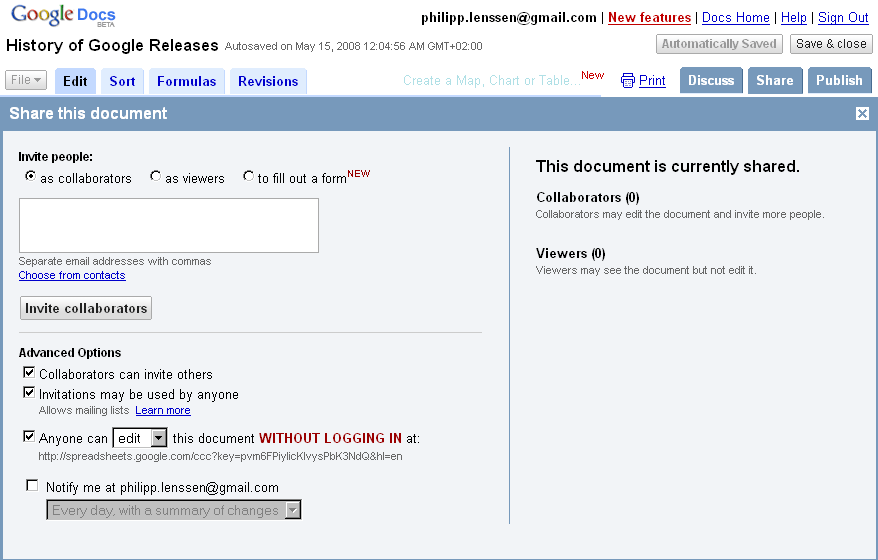
Ionut Alex. Chitu reports you can now edit a spreadsheet with anyone who knows the URL, as an option, and not just people with a Google account which you invite. To set this up, start at Google Docs and click New Spreadsheet. Prepare your data and hit the Share tab; now configure the "Anyone can [edit] this without logging in" box, and share the URL Google provides you with. Ionut says, "your spreadsheet becomes a wiki."
For sample purposes, you can now edit along the History of Google Releases spreadsheet.
[By Philipp Lenssen | Origin: Edit Google Spreadsheet With Everyone | Comments]
[Advertisement] Want to advertise here? Your ad will show in the blog and feed.

Things you can do from here:
- Subscribe to Google Blogoscoped using Google Reader
- Get started using Google Reader to easily keep up with all your favorite sites
Google Docs adds mobile access support
Sent to you by Jeff via Google Reader:
via The official update feed from the Google Apps team by Google Apps Team on 3/11/08
Users can now sign in and view documents and spreadsheets from their mobile devices, including the iPhone.
Editions impacted:
Standard, Premier, Education and Partner Editions
Languages impacted:
US English
How to access what's new:
From your mobile phone's browser, sign in to Google Docs at docs.google.com/a/your.domain/m.
For more information:
http://docs.google.com/support/spreadsheets/bin/answer.py?answer=77428

Things you can do from here:
- Subscribe to The official update feed from the Google Apps team using Google Reader
- Get started using Google Reader to easily keep up with all your favorite sites
Google Spreadsheets adds gadgets, revision notifications and more
Sent to you by Jeff via Google Reader:
via The official update feed from the Google Apps team by Google Apps Team on 3/19/08
Spreadsheet gadgets let you visualize your data in interesting, intuitive ways. For example, you can see addresses on an interactive map, or create dynamic time series charts that let you zoom in and scroll through a graph.
Revision notifications let you set up alerts so you know when someone makes changes to a spreadsheet.
Other new features include the ability to select cells for formulas with arrow keys, an expanded color palette, text auto-complete from other cells in the same column, a new function auto-complete feature, and new sort(), filter() and unique() functions.
Editions impacted:
Standard, Premier, Education, Team and Partner Editions
Languages impacted:
US English
How to access what's new:
Sign in to Google Docs, open a spreadsheet, and click the 'Add' button in the toolbar. (The icon looks like a bar chart.) Then select "Gadget..." to see all the gadget options.
See links below for other feature access instructions.
For more information:
http://documents.google.com/support/spreadsheets/bin/topic.py?topic=14187
http://documents.google.com/support/spreadsheets/bin/answer.py?answer=91588
http://documents.google.com/support/spreadsheets/bin/answer.py?answer=92022

Things you can do from here:
- Subscribe to The official update feed from the Google Apps team using Google Reader
- Get started using Google Reader to easily keep up with all your favorite sites
Google Presentations adds speaker notes and YouTube video embedding
Sweet.....
You can now add speaker notes and embed YouTube videos in Google Presentations.
Editions impacted:
Standard, Premier, Education, Team and Partner Editions
Languages impacted:
US English
How to access what's new:
Sign in to Google Docs, open a presentation and click the speaker notes icon at the bottom right of the screen to add speaker notes. Click 'Start presentation' and then click 'View speaker notes' to see your notes.
To embed a video in a presentation, open a presentation for editing, click 'Insert video' and search for the video you want to embed.
For more information:
http://www.google.com/a/help/intl/en/users/dands.html
Sent to you by Jeff via Google Reader:
via The official update feed from the Google Apps team by Google Apps Team on 4/28/08
You can now add speaker notes and embed YouTube videos in Google Presentations.
Editions impacted:
Standard, Premier, Education, Team and Partner Editions
Languages impacted:
US English
How to access what's new:
Sign in to Google Docs, open a presentation and click the speaker notes icon at the bottom right of the screen to add speaker notes. Click 'Start presentation' and then click 'View speaker notes' to see your notes.
To embed a video in a presentation, open a presentation for editing, click 'Insert video' and search for the video you want to embed.
For more information:
http://www.google.com/a/help/intl/en/users/dands.html
Things you can do from here:
- Subscribe to The official update feed from the Google Apps team using Google Reader
- Get started using Google Reader to easily keep up with all your favorite sites
Google Docs allows CSS customization for documents
Getting better and better ways to make it look polished.
Users can now customize the cascading style sheet (CSS) for their documents. This provides advanced controls for page design, layout and formatting.
Editions impacted:
Standard, Premier, Education, Team and Partner Editions
Languages impacted:
US English
How to access what's new:
Sign in to Google Docs and open a document. Then click 'Edit' from the menu bar and then 'Edit CSS...' to open the CSS editing window.
For more information:
http://documents.google.com/support/bin/answer.py?hl=en&answer=94168
Sent to you by Jeff via Google Reader:
via The official update feed from the Google Apps team by Google Apps Team on 5/9/08
Users can now customize the cascading style sheet (CSS) for their documents. This provides advanced controls for page design, layout and formatting.
Editions impacted:
Standard, Premier, Education, Team and Partner Editions
Languages impacted:
US English
How to access what's new:
Sign in to Google Docs and open a document. Then click 'Edit' from the menu bar and then 'Edit CSS...' to open the CSS editing window.
For more information:
http://documents.google.com/support/bin/answer.py?hl=en&answer=94168
Things you can do from here:
- Subscribe to The official update feed from the Google Apps team using Google Reader
- Get started using Google Reader to easily keep up with all your favorite sites
Sunday, May 11, 2008
Site now with Google Reader, RSS Feed....
In the upper left hand corner, you'll note that this site is now participating in RSS feed. Go to "More" (Google Apps) when logged in and set up your Google Reader (RSS Aggregator) to get web information collected for you. If anyone is interested in how to make your/student/class an RSS feed site, so Google Reader can be used, let me know. I see it as powerful for teachers letting their students update their "Site" and all the information comes to the teacher in one nice Reader application.....;-)
It's kind of dweeby to set up the first time, but once you get it, powerful tool......
Use Google "Sites" as Wikis
You can use Google Sites as Wikis. Check out a pbwiki site, I just ported over for Tom Warner.
Drill down into Science and Animal Reports to see student work - wow - 4th graders!!!!
Just add your students in Contacts as a Group (good thing to have for getting going with this stuff), after you create a site, then add the student Group as "Collaborators" when you share. Students get an invite to the Site through their email, they click on the invite. The next time they log in, they will be able to edit, as a Collaborator.
Because the integration of Sites with all the other Google Apps is so easy, the porting was easy. Tom was having some trouble with the integration in pbwiki of other Google documents, like Presentations. You can integrate, docs, sheets, etc. in Sites. Plus, accounts are already created.
Subscribe to:
Posts (Atom)


